Talk to customers
Reply to customers from the shared inbox
Chat with customers, hand chats to teammates and keep every conversation organised.
5 min read11 steps
- 1
Open a conversation
Click a chat on the left. New customer messages appear instantly and the unread badge clears when you open it.
Conversation list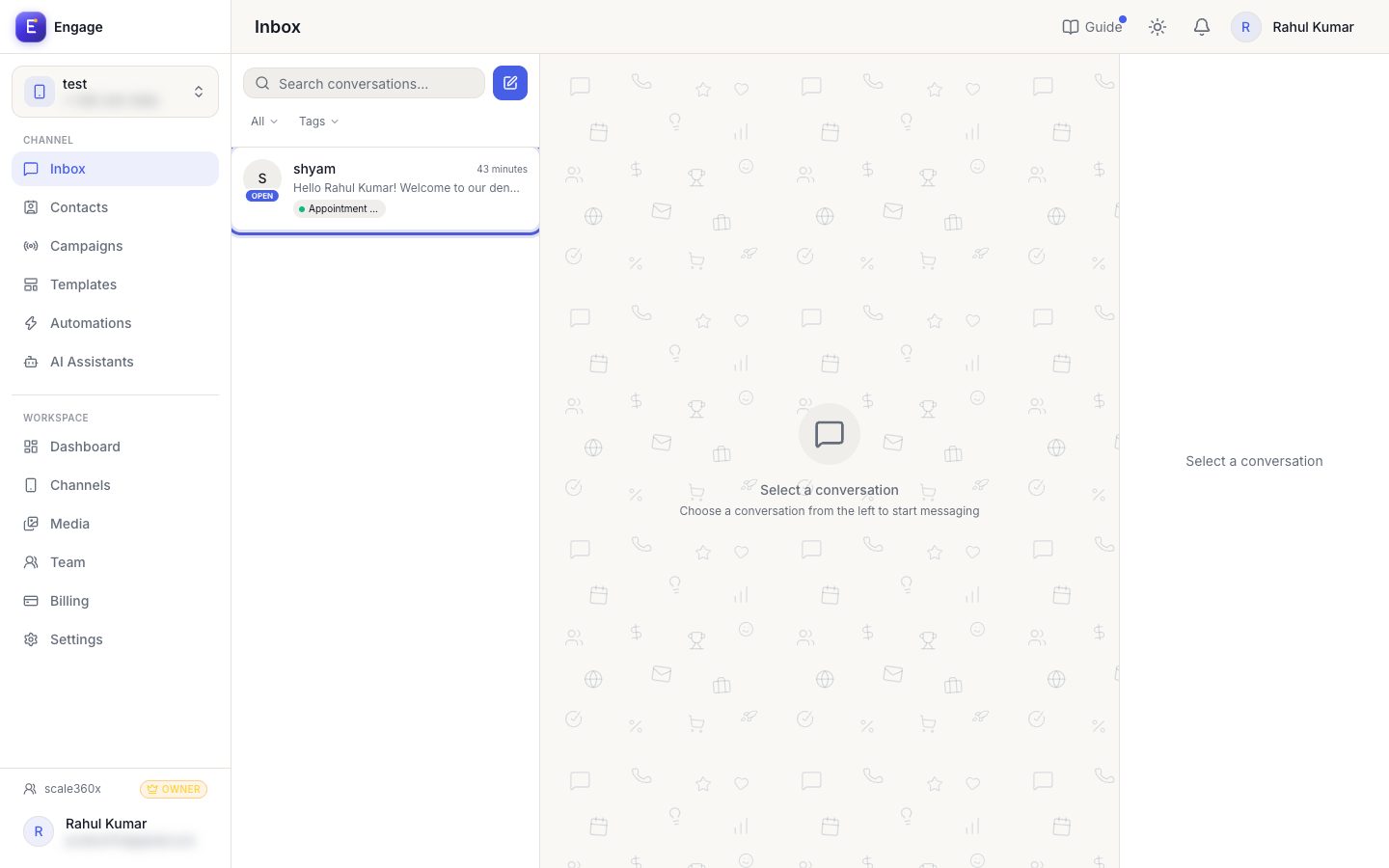
- 2
Reply inside the 24-hour window
After a customer writes, you can send free text, images, documents, voice notes and interactive buttons for 24 hours. The timer in the chat header shows what is left.
Message box at the bottom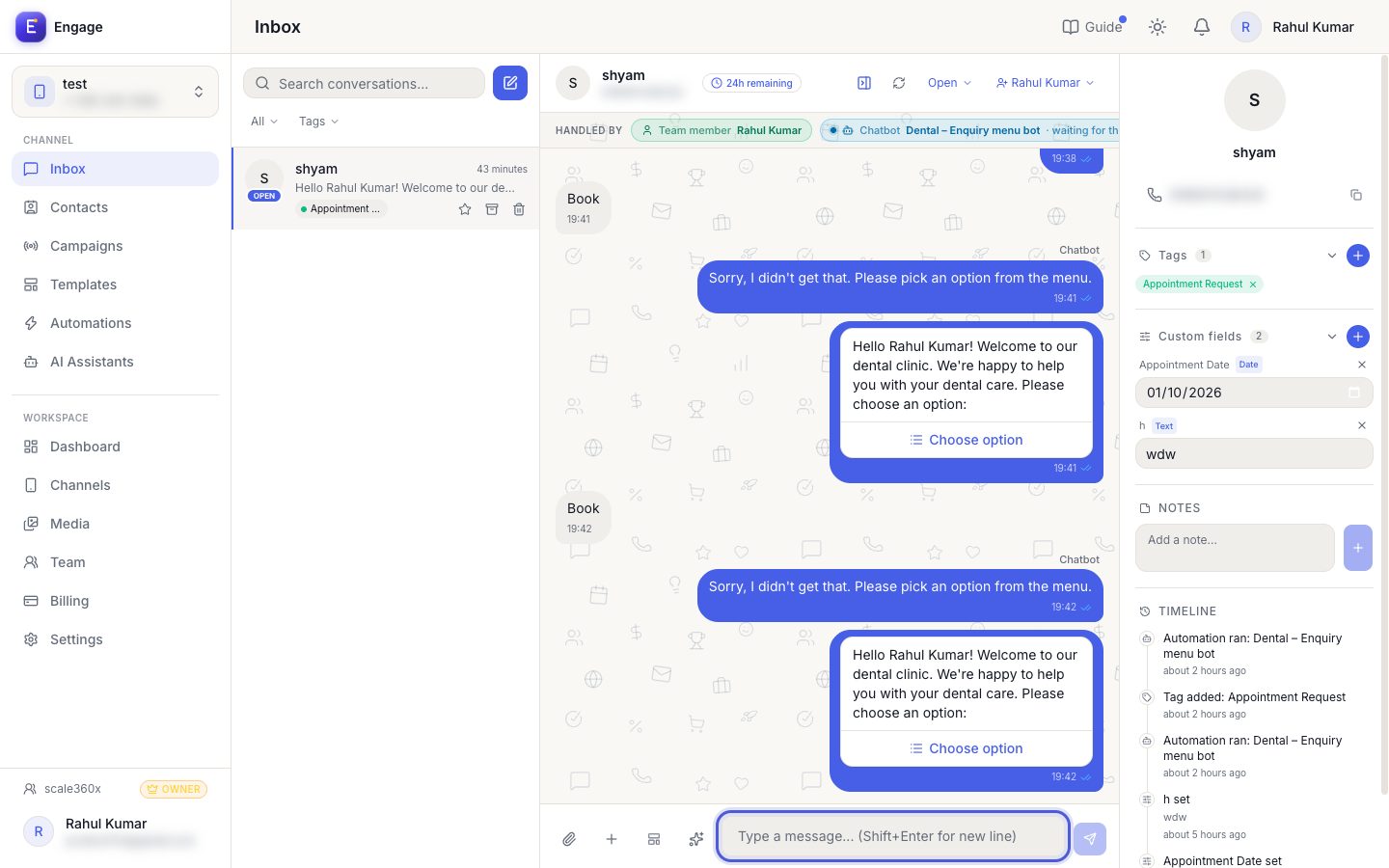
- 3
Outside 24 hours, send a template
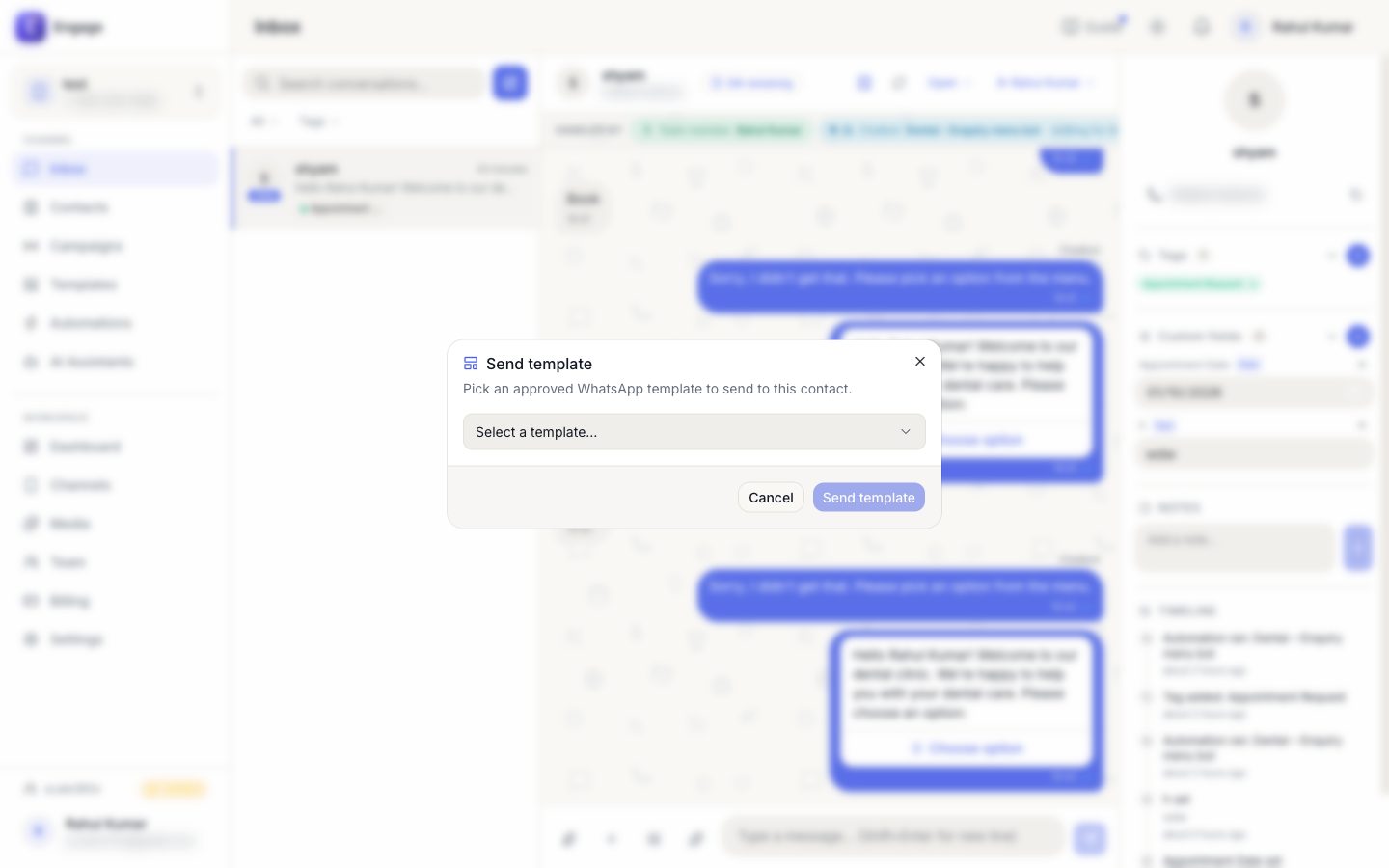
WhatsApp only allows approved templates once the window has closed. Click the template button, pick one from the dropdown, fill the variables and send.
Template icon next to the message boxA brand-new chat also starts with a template.
- 4
Start a new chat
Click the New chat button at the top of the conversation list, type the number with country code (or pick an existing contact), then choose a template as the first message.
New chat button above the search bar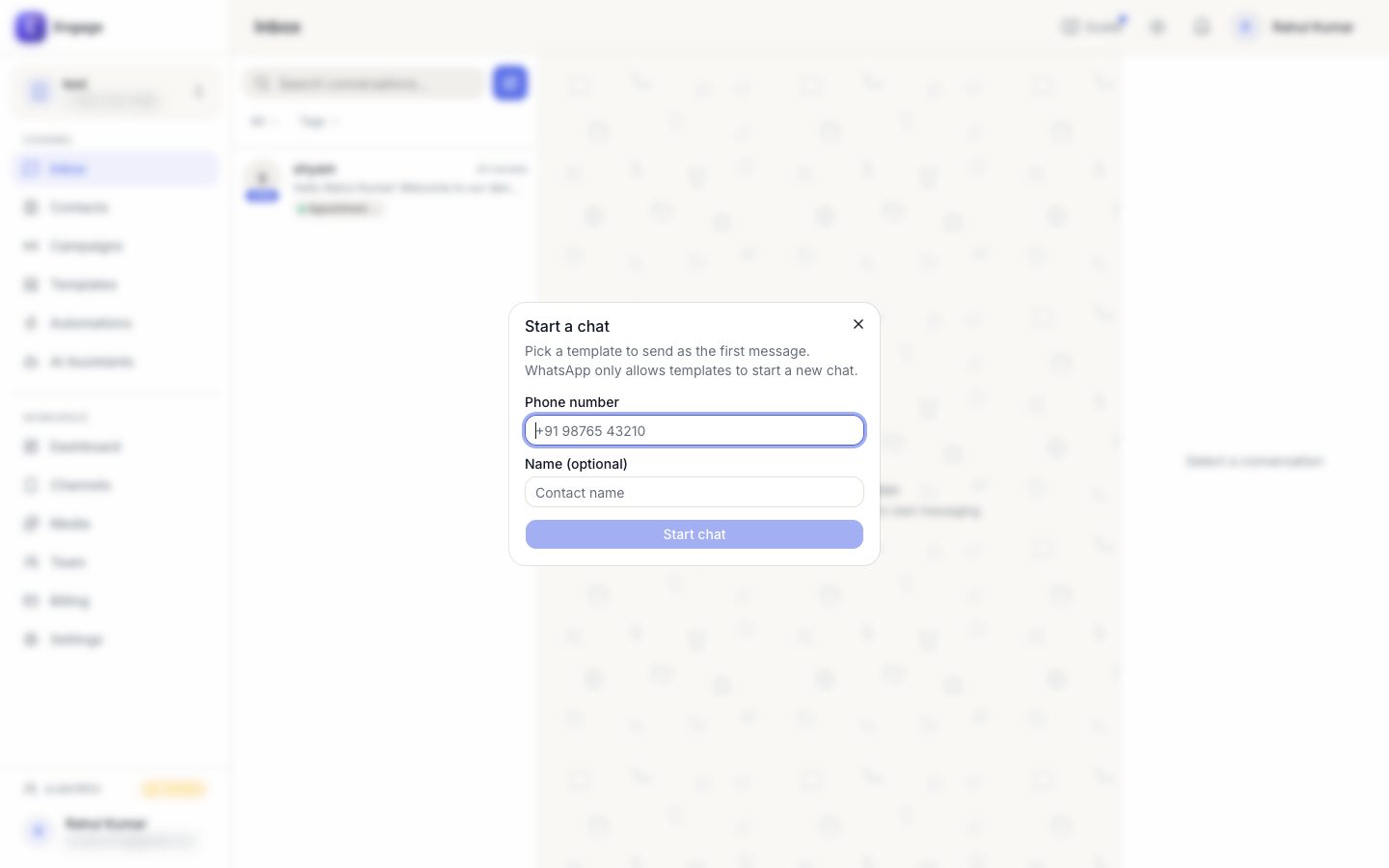
- 5
Find chats fast
Use the filter dropdown: Unread, 24h window open, Starred, Open, Pending, Closed or Archived. Search matches names, numbers and last messages.
All ▾ filter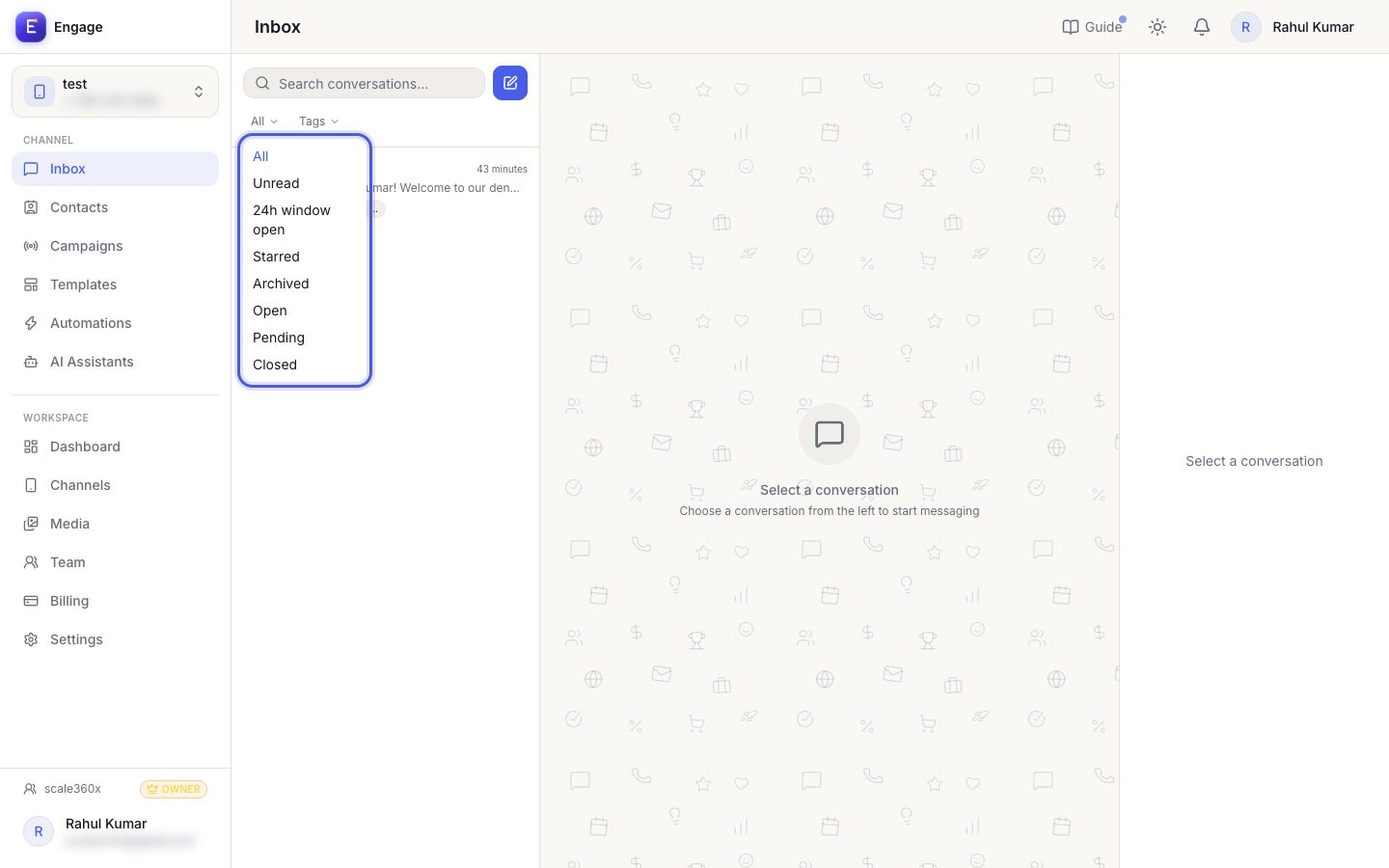
- 6
Star, archive or delete
Hover a chat to see the star, archive and (for admins) delete icons in a small bar at its top right (always visible on phones). Starred chats stay on top; archived chats leave the main list but keep their history.
Hover a conversation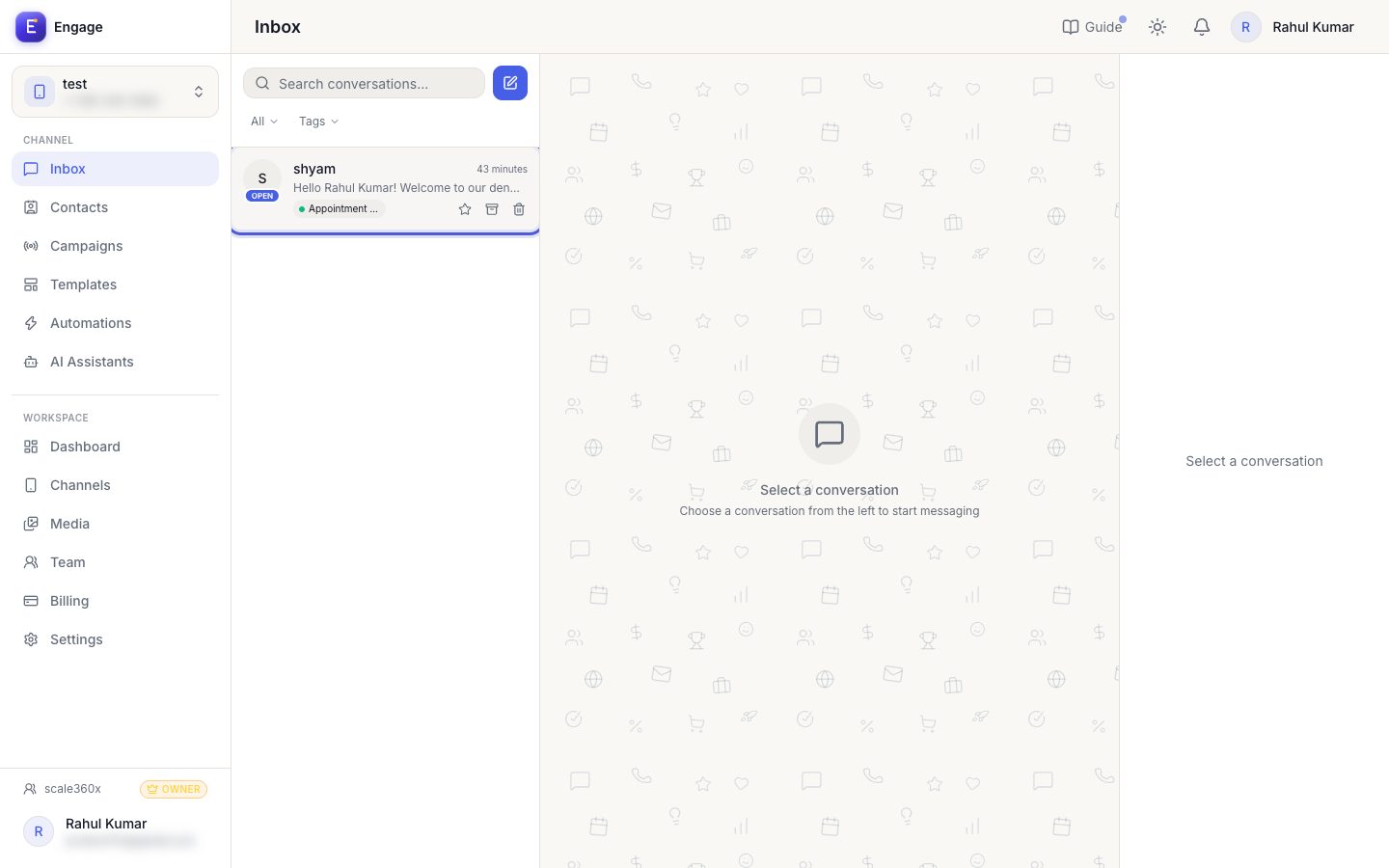
- 7
React, reply, copy or forward
Hover a message (or long-press on a phone) for the toolbar. Tap the smiley to react: pick one of the six quick emojis, or press + for the full emoji list. The same toolbar has Reply, Copy, Forward and Info (sent, delivered and read times).
Hover or long-press a message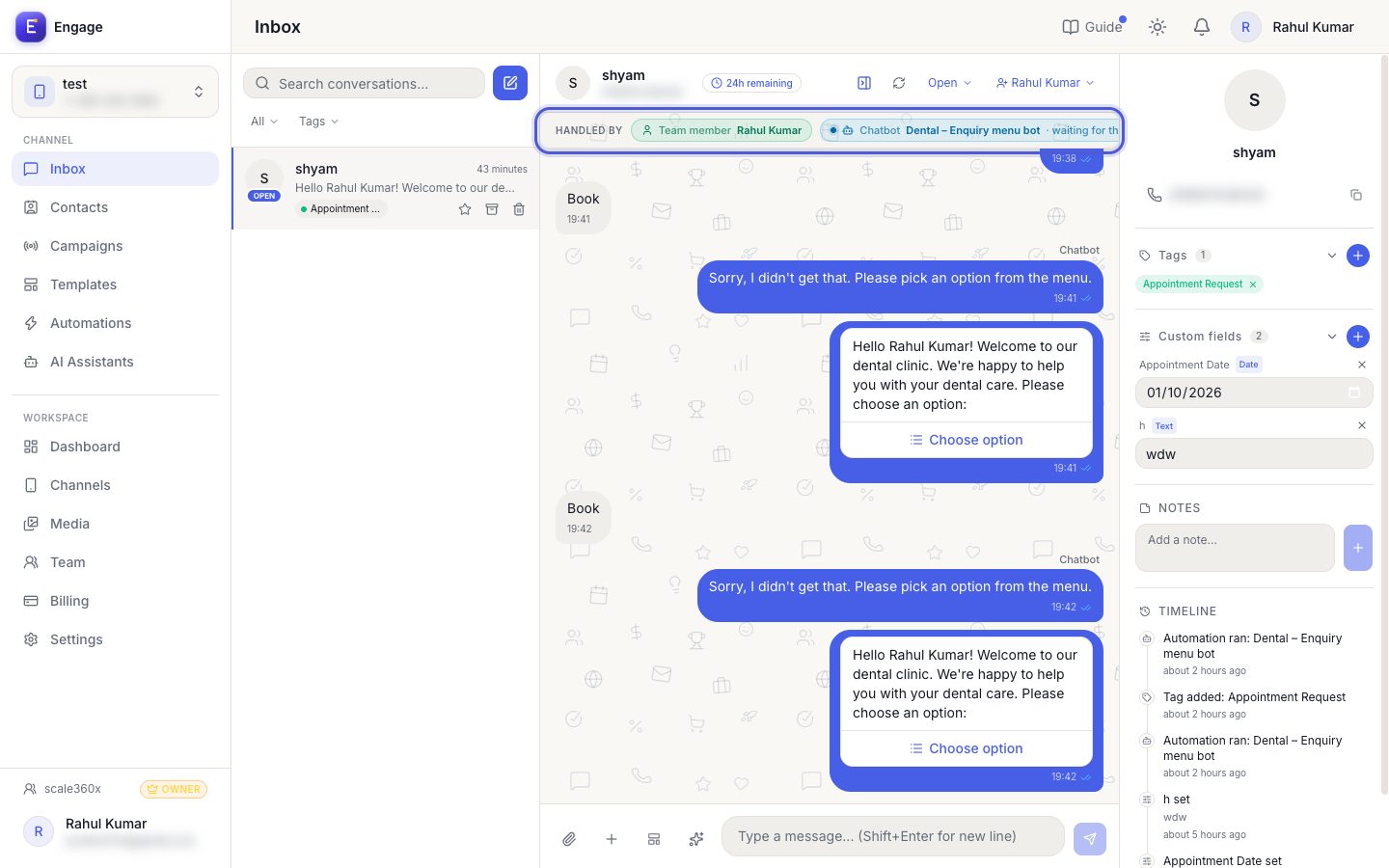
- 8
Never miss a waiting customer
If a customer has waited a while for an answer, the person the chat is assigned to (or the owner, when nobody owns it) gets one e-mail listing who is waiting. The owner also gets a short summary every morning. Choose the wait, or turn either e-mail off, in Settings → Inbox.
Settings → Inbox
- 9
Contact support
Open Support in the left menu (or Contact support in the Help center) and create a ticket. Our team replies in the same ticket and by e-mail, and you can see every ticket and reply there. Orbit plans have priority support: their tickets are marked high priority for our team.
Support
- 10
Mention a teammate in a note
In the Notes box of the right panel type @ and pick a teammate. They get a notification (and an e-mail) that opens this chat. Notes are internal: the customer never sees them.
Right panel → Notes
- 11
Assign and tag
Use Assign in the chat header to give the chat to a teammate. The right panel shows the contact's tags, custom fields, notes and timeline.
Chat header and right panel
Pro tips
- Use Quick replies for answers you send often.
- The 'Handled by' chip shows who has the chat: a chatbot, an AI assistant or a teammate. Help → 'Who answers a chat' has the rules.
- Set the status to Closed when a chat is done; it reopens when the customer writes again.
Common questions
Why can't I type a normal message?
The 24-hour window has closed. Send an approved template to reopen the conversation.
Does archiving delete messages?
No. Archive only hides the chat from the main list. Delete (admin only) is permanent.
Try it on your own WhatsApp number
Start a free trial, no card needed, and follow this guide inside the product.
Stuck, or no time? We will set this up for you.
Tell us what your business does. Our team designs the chatbots, connects your tools, gets your messages approved and trains your team. You only reply to the customers it hands to you.