Get started
Create a WhatsApp message template
Create WhatsApp message templates and get them approved by Meta.
4 min read4 steps
- 1
Create a template
Click New Template. Choose a category (Marketing, Utility or Authentication), language, and write the body. Use {{1}}, {{2}} for variables.
New Template button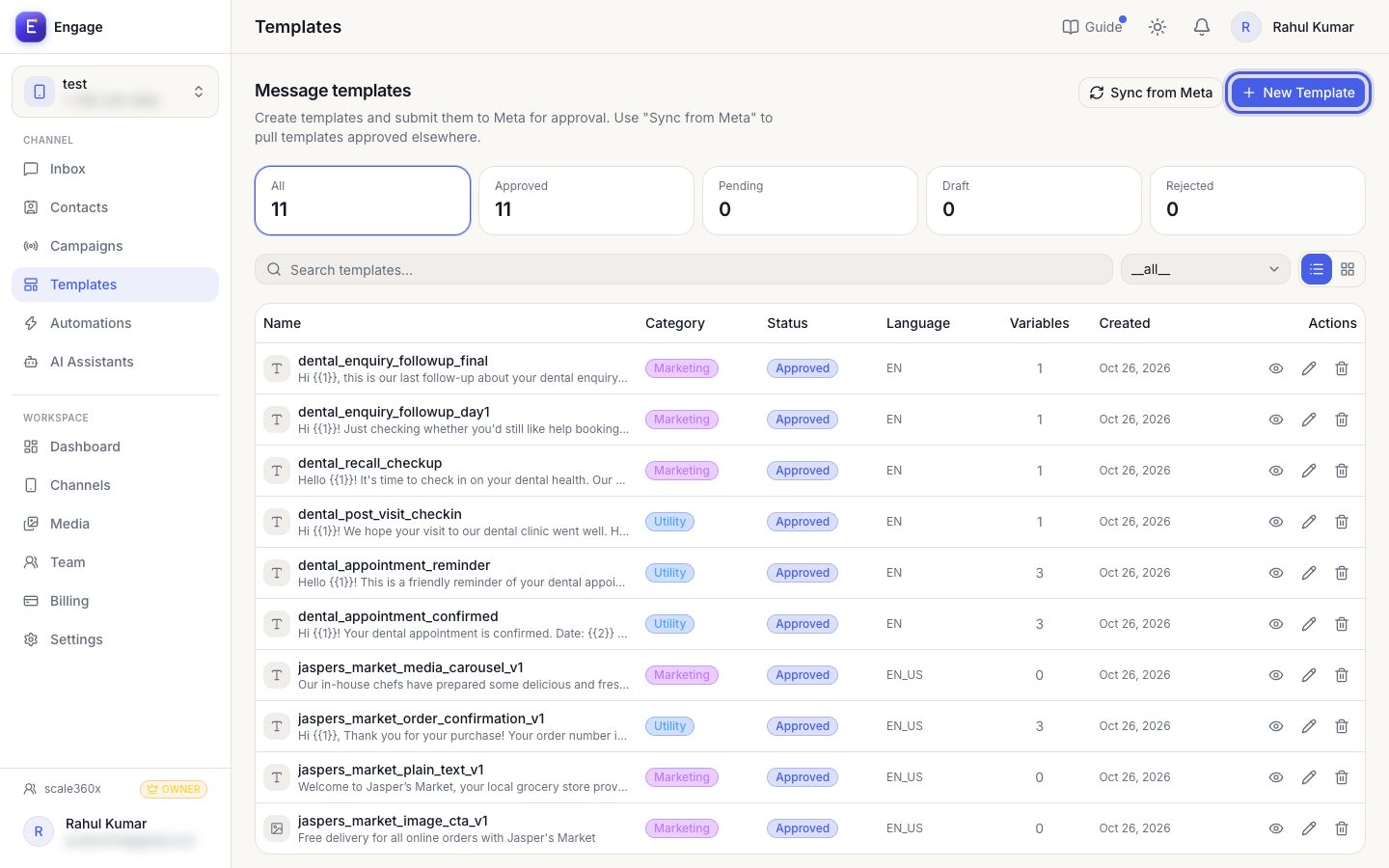
- 2
Add buttons or media
Optionally add a header, footer and up to a few quick-reply or link buttons. Quick replies can trigger automations.
Template editor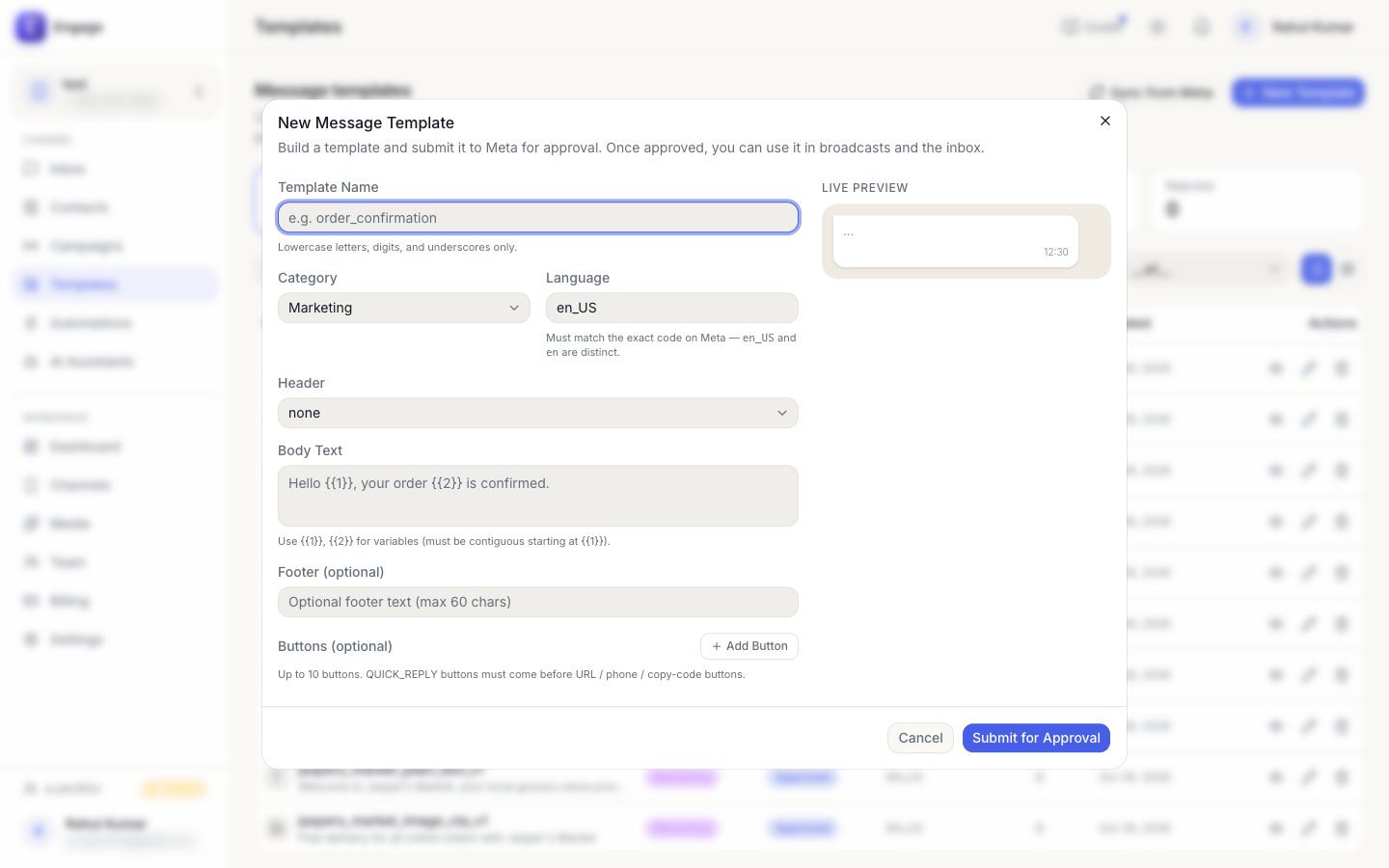
- 3
Submit to Meta
Click Submit for Approval in the editor. Status moves from Pending to Approved or Rejected; you can also submit several drafts at once from the list.
Submit for Approval button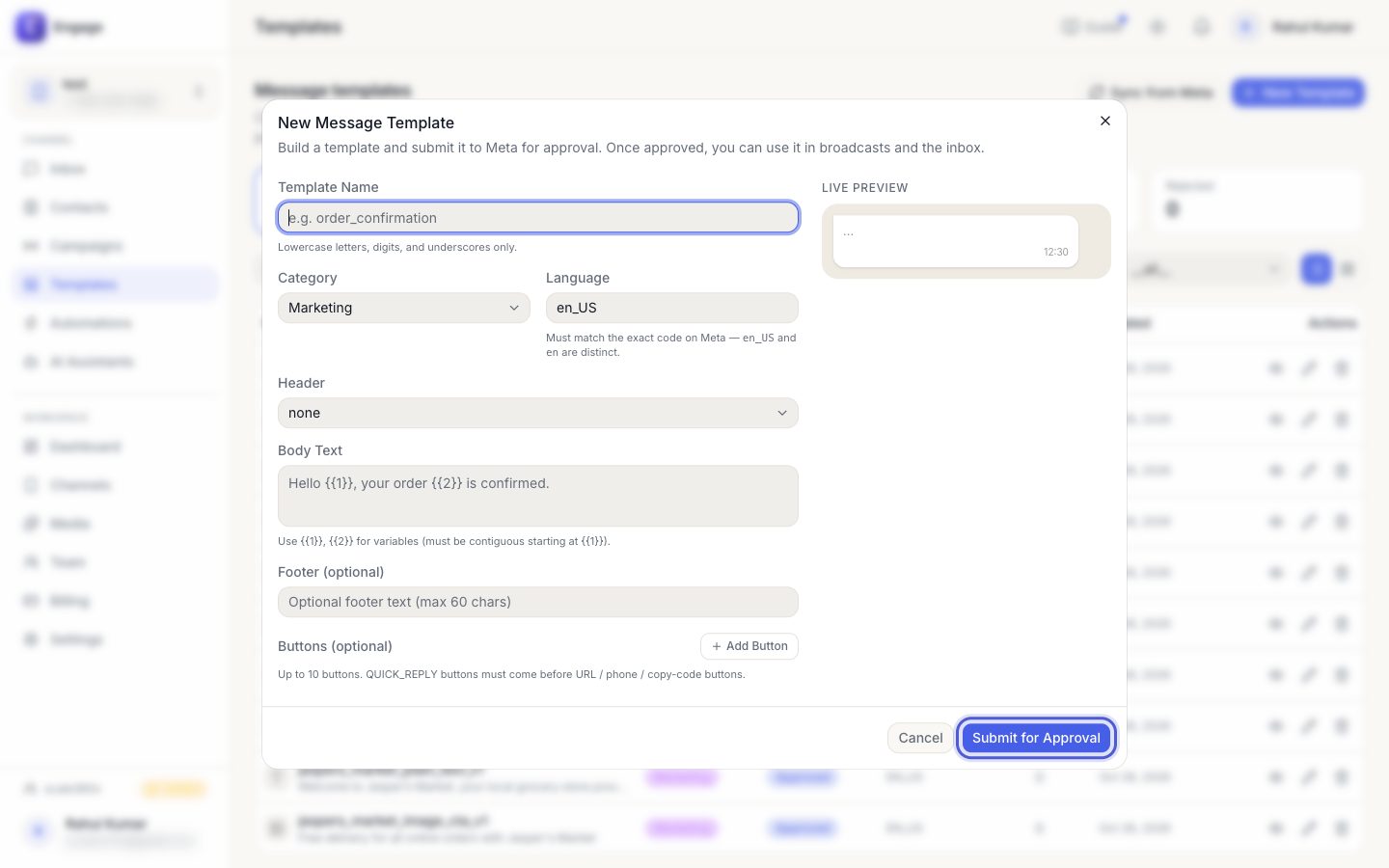
- 4
Sync and preview
Use Sync to pull the latest status from Meta. Open any template for a phone-style preview.
Sync from Meta button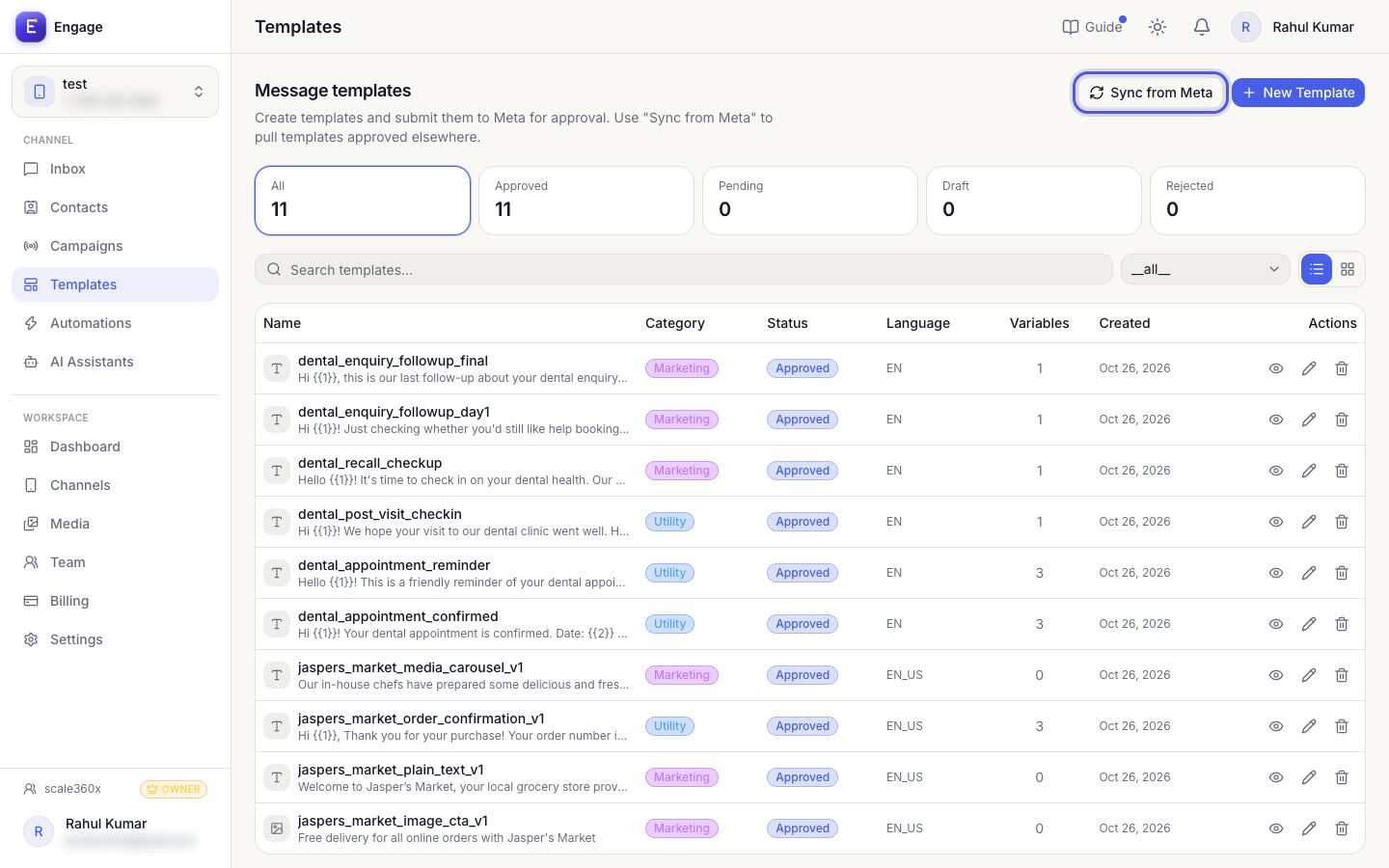
Pro tips
- Utility templates (reminders, confirmations) are usually approved fastest.
- Rejected? Read the reason, edit and resubmit.
Common questions
How long does approval take?
Usually minutes to a day. You will see the status change after a Sync.
Try it on your own WhatsApp number
Start a free trial, no card needed, and follow this guide inside the product.
Stuck, or no time? We will set this up for you.
Tell us what your business does. Our team designs the chatbots, connects your tools, gets your messages approved and trains your team. You only reply to the customers it hands to you.