Automate
See what your chatbot did
Every run of an automation, contact by contact: where it is, where it stopped, and exactly what it sent.
3 min read4 steps
- 1
Open an automation's sessions
On the Automations page click the document icon on a row (or Sessions in the card menu). The cards at the top count Completed, Waiting and Failed runs and how many contacts it touched; click a card or chip to filter, and search by contact.
Automations → document icon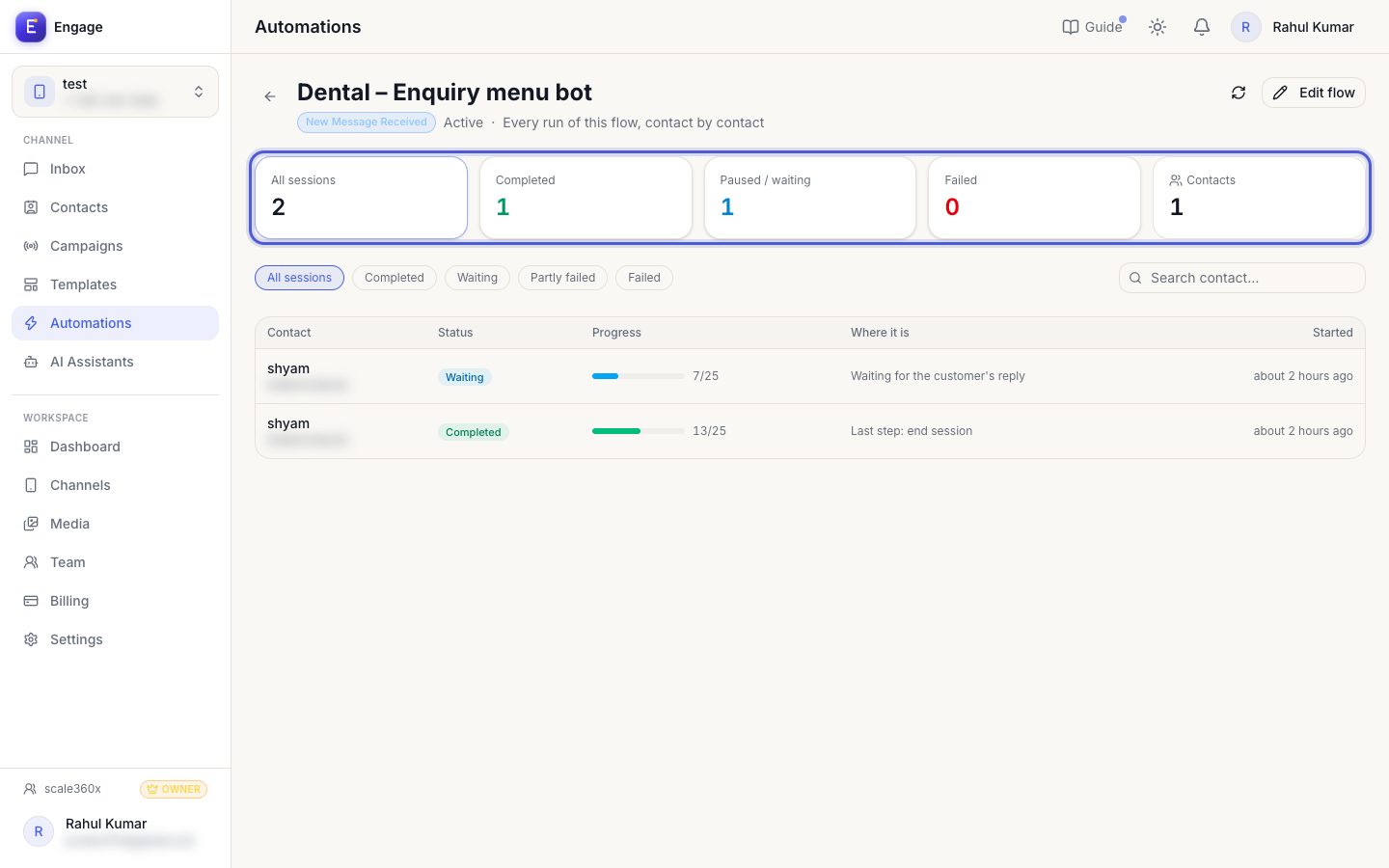
- 2
Read the table
Each row is one contact's run: its status (Completed, Waiting for a reply or timer, Partly failed, Failed), a progress bar of how many steps it reached, where it is now or why it failed, and when it started.
Sessions table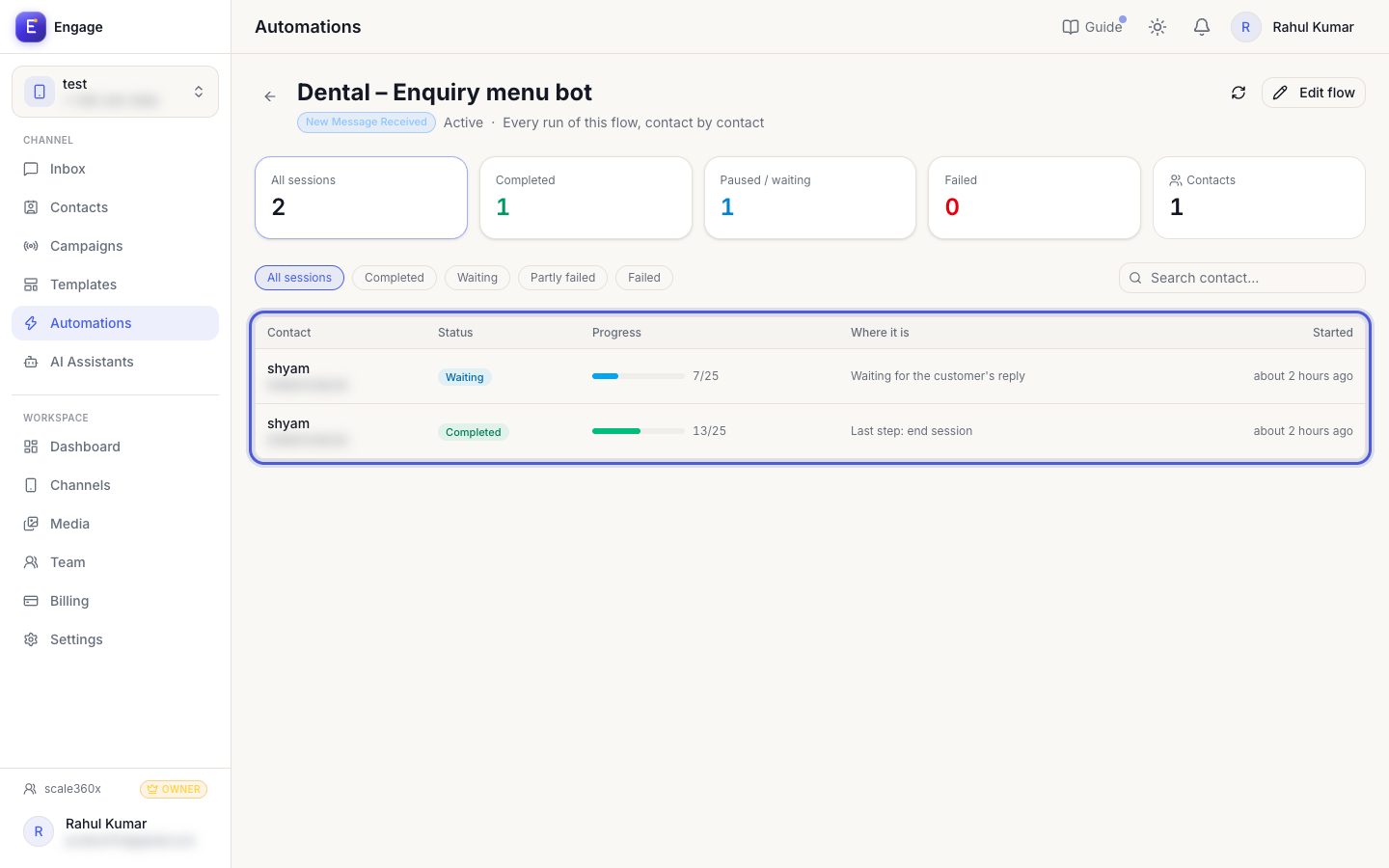
- 3
Open one session
Click a row. The page shows the whole flow on a canvas with this contact's path lit up: green ran, red failed, blue is where it paused, dim steps never ran.
Click a row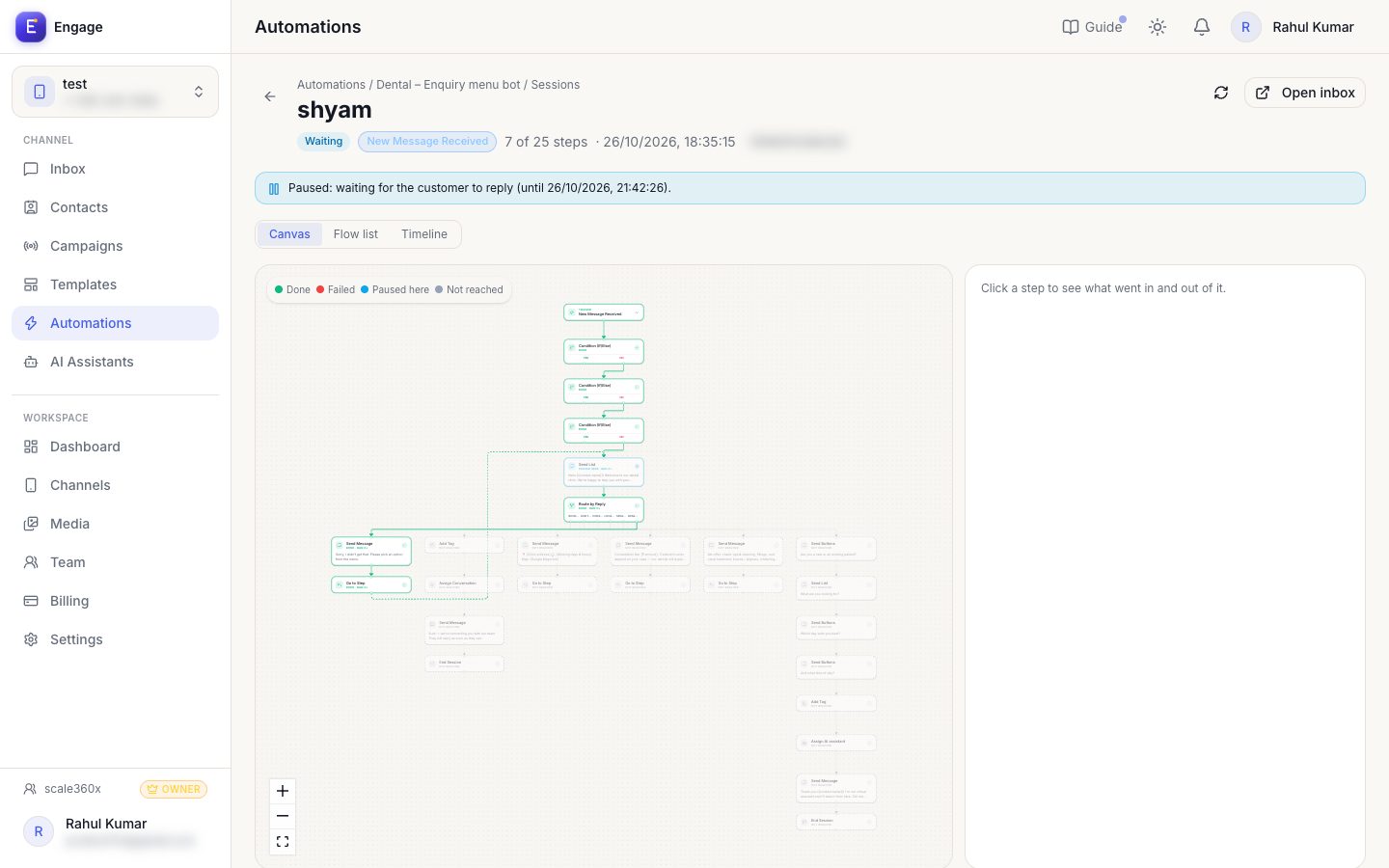
- 4
Click any step
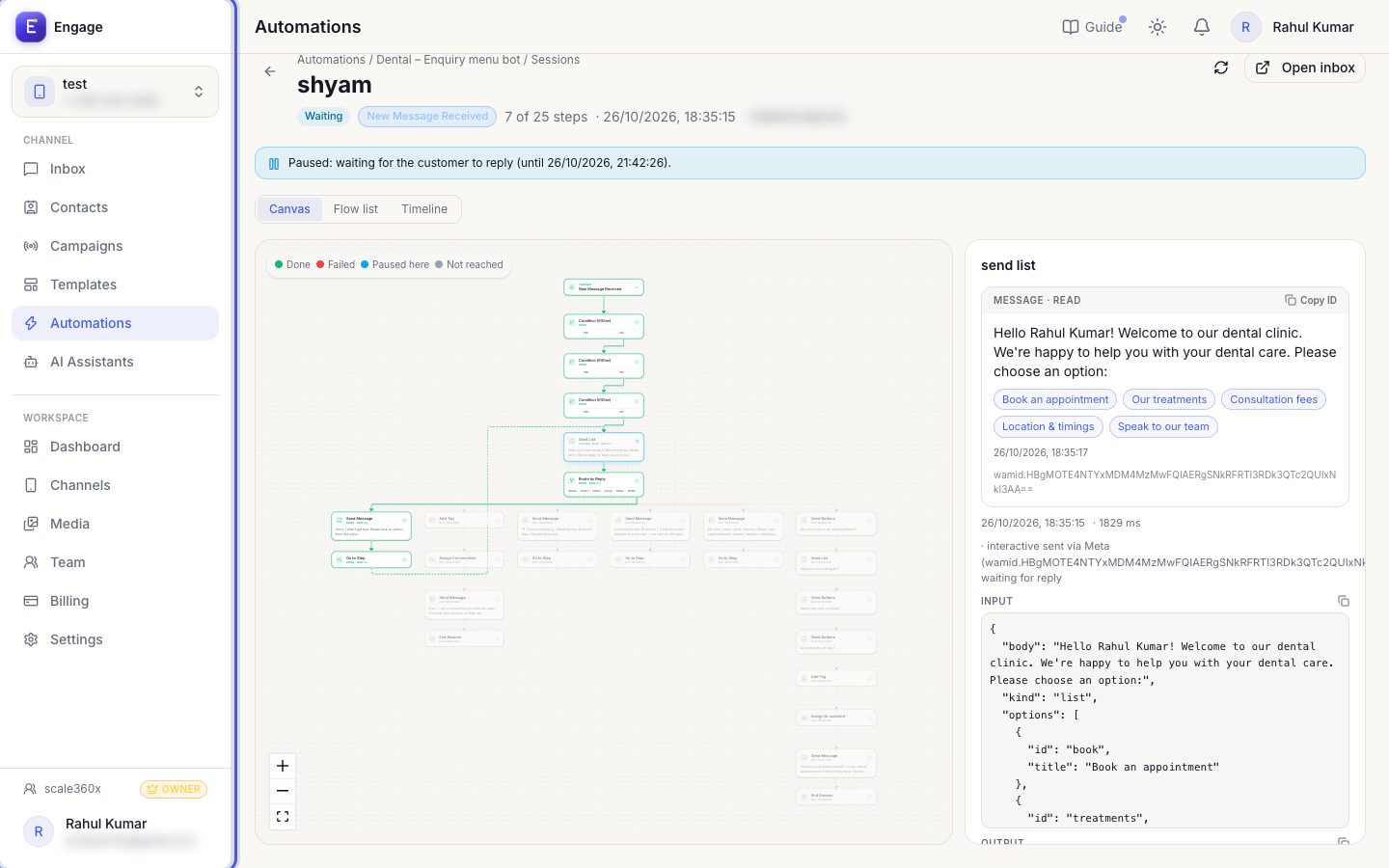
A step opens on the right: the message that was actually sent (with its WhatsApp message id), plus the input it received and the output it produced, timing and any error. Flow list and Timeline show the same run as a list.
Canvas → click a stepA failed step shows the exact error, for example an expired 24-hour window or a template that is not approved.
Pro tips
- After changing a flow, test it with your own number and open the new session to confirm every step ran.
Try it on your own WhatsApp number
Start a free trial, no card needed, and follow this guide inside the product.
Stuck, or no time? We will set this up for you.
Tell us what your business does. Our team designs the chatbots, connects your tools, gets your messages approved and trains your team. You only reply to the customers it hands to you.