Automate
Triggers and the chatbot editor
What starts an automation, how keywords and hot keywords behave while a menu is running, and how to build the steps.
6 min read9 steps
- 1
Pick what starts it (the trigger)
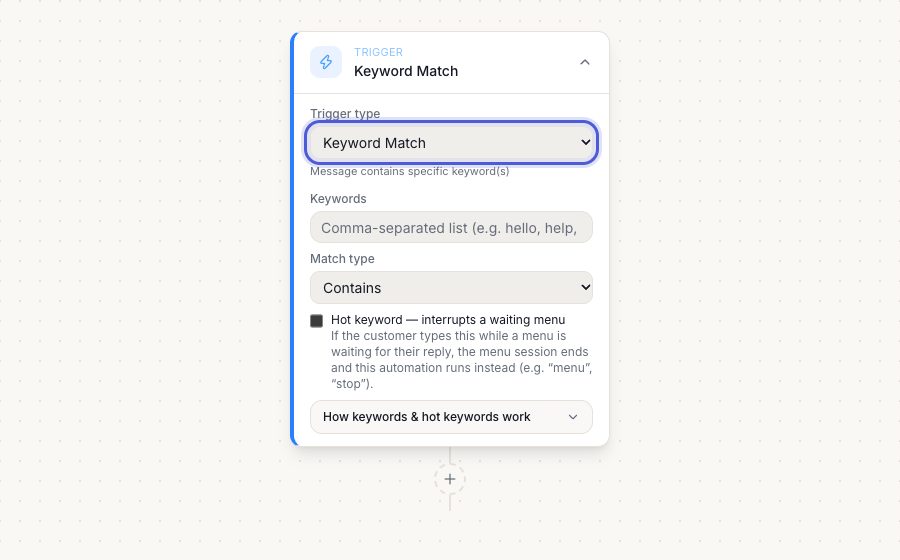
Click the Trigger card and choose one: New Message Received (every message the customer sends), First Message from Contact (their very first message ever), Keyword Match (the message contains your words), Button / List Reply (a tap on a menu you sent), Template Button Reply (a tap on a template's quick-reply button), New Contact Created, Conversation Assigned, Tag Added, Date Field (before / on / after a date, like an appointment) and Time-Based (a schedule).
Trigger card → type dropdownOnly one active automation may use the same keyword, the same button, or listen to New Message Received on a channel. Turning on a duplicate is refused with a clear message.
- 2
Keyword Match: words and match type
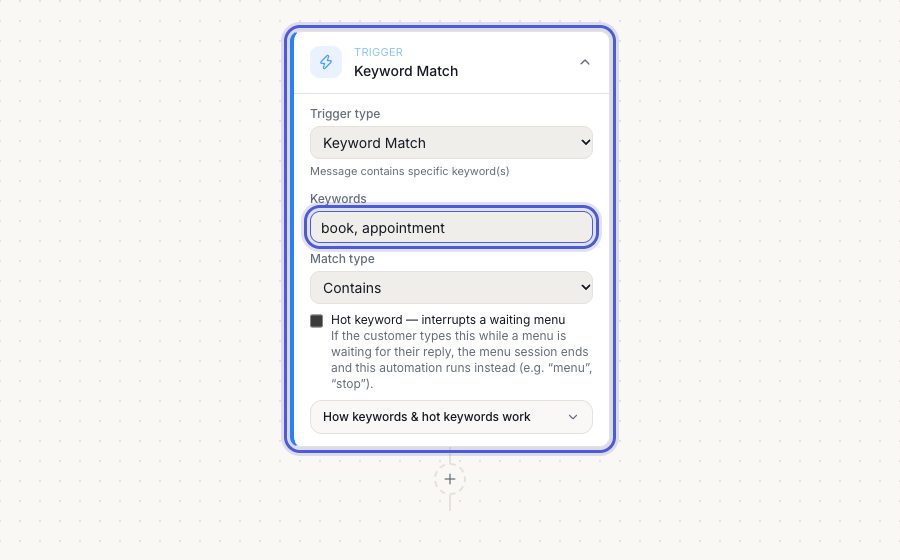
Type the words separated by commas (book, appointment). Match type decides how strict it is: Contains (the word appears anywhere, even inside another word), Whole word (a separate word: 'book' matches 'I want to book' but not 'facebook'), Exact (the whole message equals your keyword). Capitals never matter.
Trigger card → Keywords and Match typePrefer Whole word for short keywords like 'stop' or 'book' so they do not fire inside longer words.
- 3
What happens while a menu is running
When your bot sends a menu that waits for a reply (Send Buttons / Send List with Wait for reply), that menu owns the chat. The customer's next message is treated as the menu's answer: a tap goes to that option's branch, typed text goes to the matching option or to 'default'. While the menu waits, normal Keyword Match and New Message Received automations do NOT run for that message, and the AI assistant stays quiet, so the customer never gets two bots answering at once.
Route by Reply step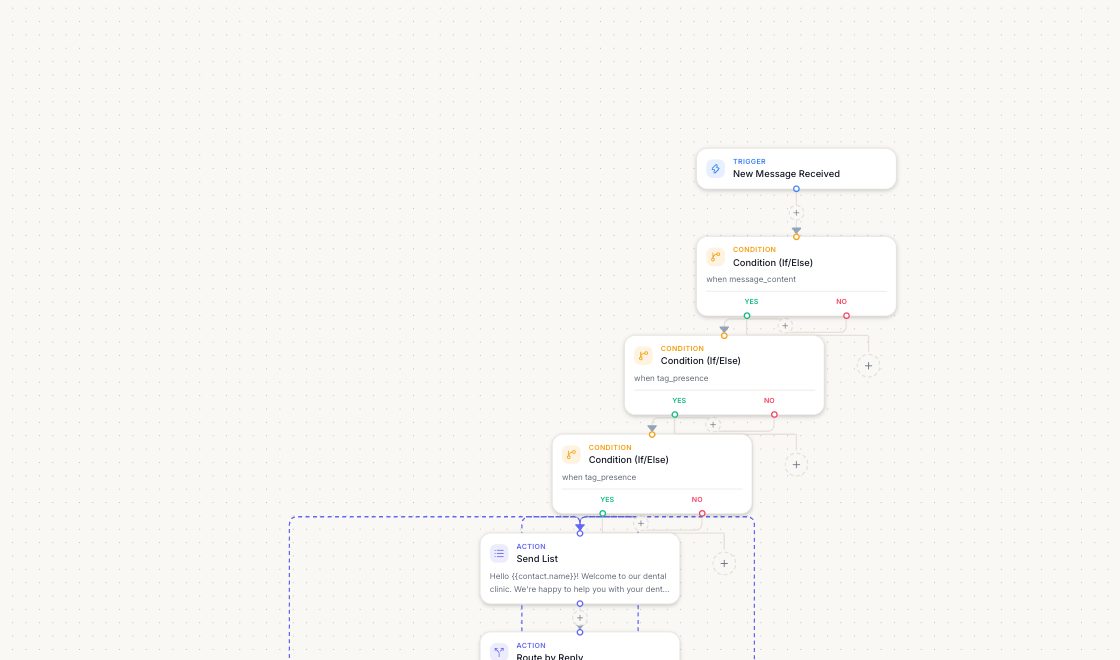
- 4
Hot keyword: a keyword that always works
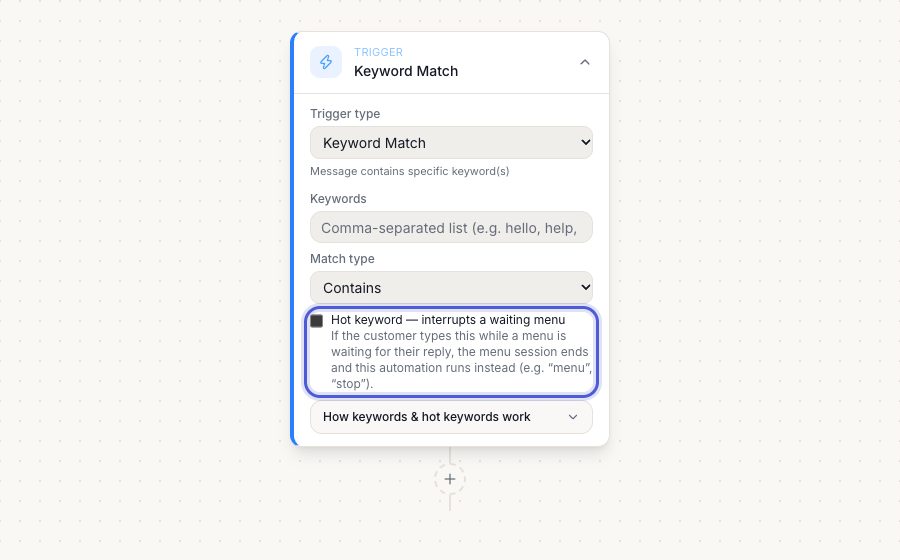
Tick 'Hot keyword — interrupts a waiting menu' on a Keyword Match trigger. Now, if the customer types that word while a menu is waiting, the menu is ended and this automation runs instead. Use it for words that must work anywhere: stop, menu, human, agent, cancel. Only typed text can interrupt; tapping a button or list row always belongs to the menu that sent it.
Keyword Match trigger → Hot keyword checkbox (below Match type)Example: a booking menu is open and the customer types 'human'. With Hot keyword ON on your Human automation, the menu closes and your team is tagged in. With it OFF, 'human' would just be read as a (wrong) menu answer.
- 5
Which one runs? The order
For every message the customer sends: (1) a hot keyword ends a waiting menu first; (2) if a menu is still waiting, it takes the message as its reply and nothing else runs; (3) if a team member or the AI assistant owns the chat, only hot keywords run (a team member's chat gets no bot and no AI, the assistant's chat gets the assistant); (4) otherwise the triggers run: First Message / New Contact, then New Message Received and Keyword Match, and a button tap also fires Button / List Reply; (5) the AI assistant answers only if no automation did and no human owns the chat. A tap on a template's quick-reply button runs that template's own Template Button Reply automation first.
Applies to every inbound message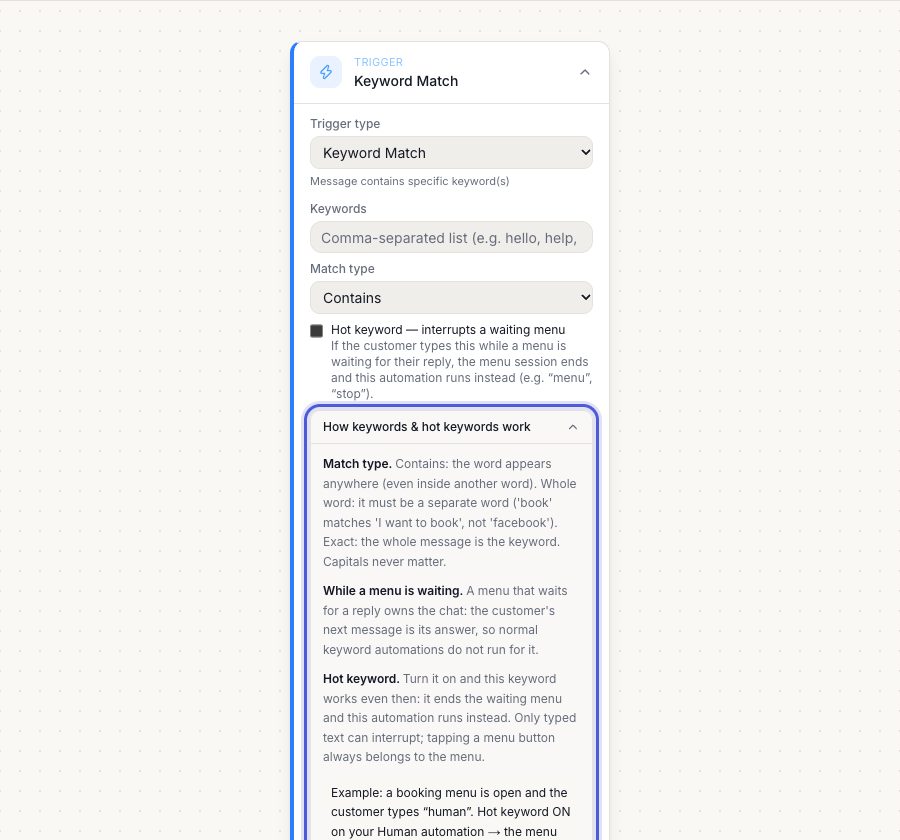
- 6
Menu bots: keep them from talking over people
A New Message Received menu bot answers every message. Guard it: add a Condition at the top (for example tag 'Needs Human' → do nothing) and add that tag in your Human / handover automation. When an AI assistant or a team member owns a chat, the New Message Received bot stays quiet automatically; hot keywords like STOP and HUMAN still run, and they never take the chat from the team member who has it. See the guide 'Who answers a chat' for every case.
First step of the menu bot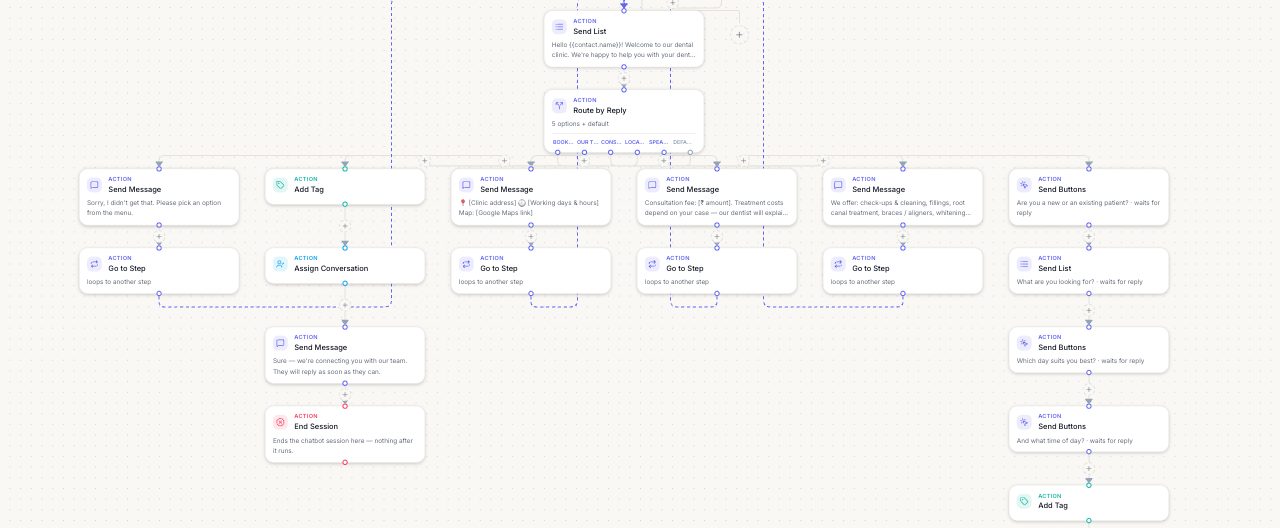
- 7
Build the steps
Click + under any step to add the next one. Conditions open Yes / No branches; Route by Reply opens one branch per menu option plus 'default'. Go to Step jumps back (for example to the menu) so the session stays open, and End Session stops the run.
+ buttons on the canvas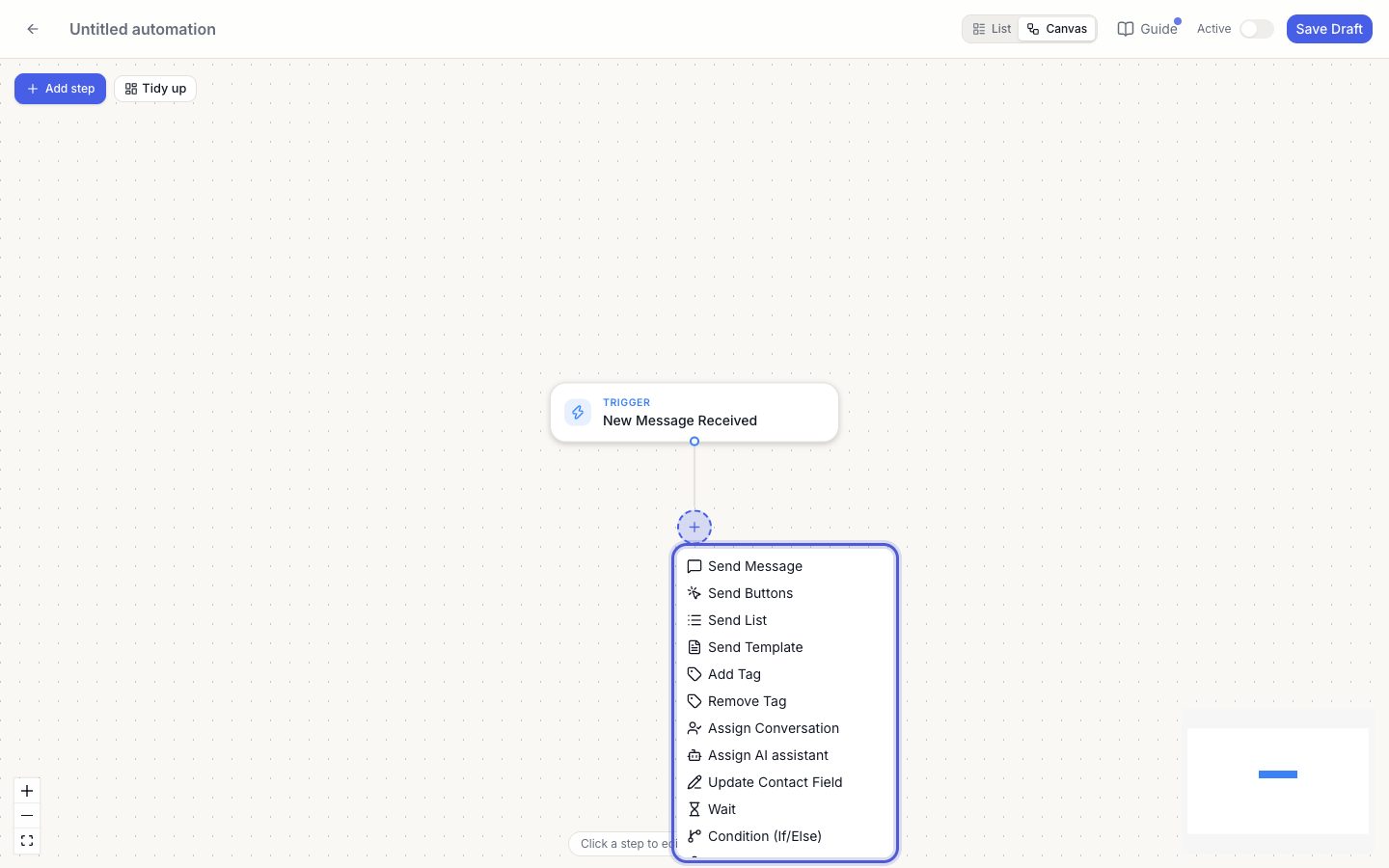
- 8
Use customer details in messages
Insert {{contact.name}}, {{contact.phone}} or a custom field like {{custom.appointment_date}} in any text or template variable. The variable picker next to each field lists what is available.
Text fields → variable picker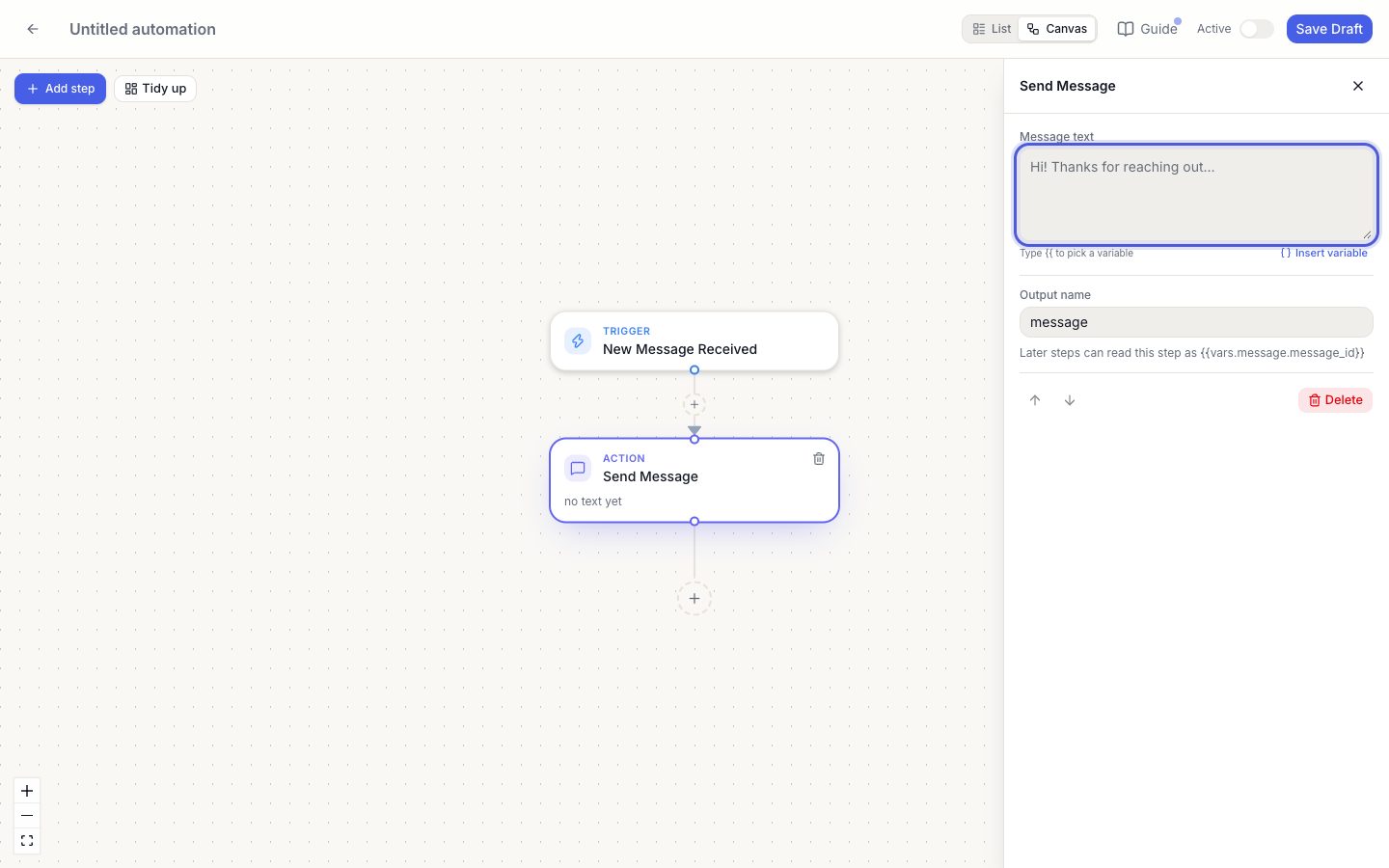
- 9
Save, activate, then watch it run
Save, then switch the automation on; activation checks every step and tells you what is missing. Open Sessions on the automation to see every contact's run, where it paused or failed, and exactly what each step sent and received.
Save / Active toggle → Sessions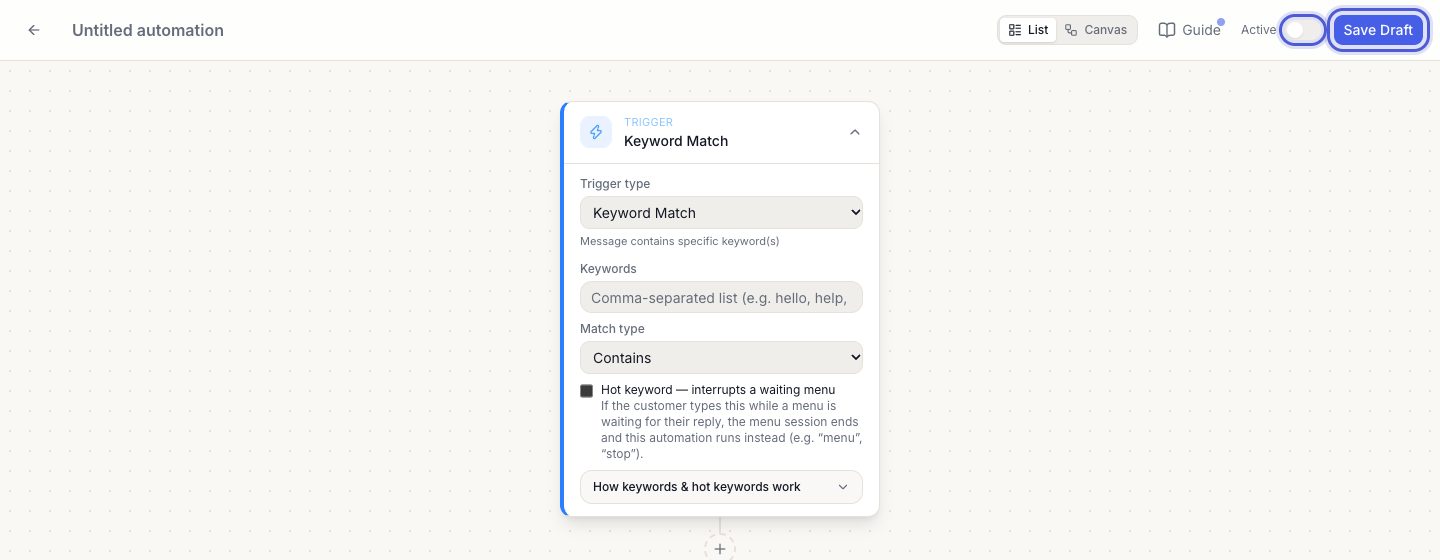
Pro tips
- Test with your own number first, with the automation active.
- Use Whole word for short keywords, and Hot keyword for stop / human / menu.
- Duplicate an automation to reuse a flow.
Common questions
My keyword did nothing while a menu was open.
A waiting menu takes the message as its reply. Turn on Hot keyword on that keyword automation so it can interrupt the menu.
Why did two bots answer?
A New Message Received automation and a Keyword automation can both match a message when no menu is waiting. Use a Condition to separate them, or make the keyword a Hot keyword and guard the menu bot.
Can two automations use the same keyword?
No. Only one active automation may use a given keyword (or button, or template button). Pause the other one first.
Try it on your own WhatsApp number
Start a free trial, no card needed, and follow this guide inside the product.
Stuck, or no time? We will set this up for you.
Tell us what your business does. Our team designs the chatbots, connects your tools, gets your messages approved and trains your team. You only reply to the customers it hands to you.